Combat Is Back on Phones: Turn Sideways and Fight
Lourdin RPG battles play on phones again: hold your phone sideways for the whole hex board, a dock under your thumb, tap-to-confirm moves and co-op.
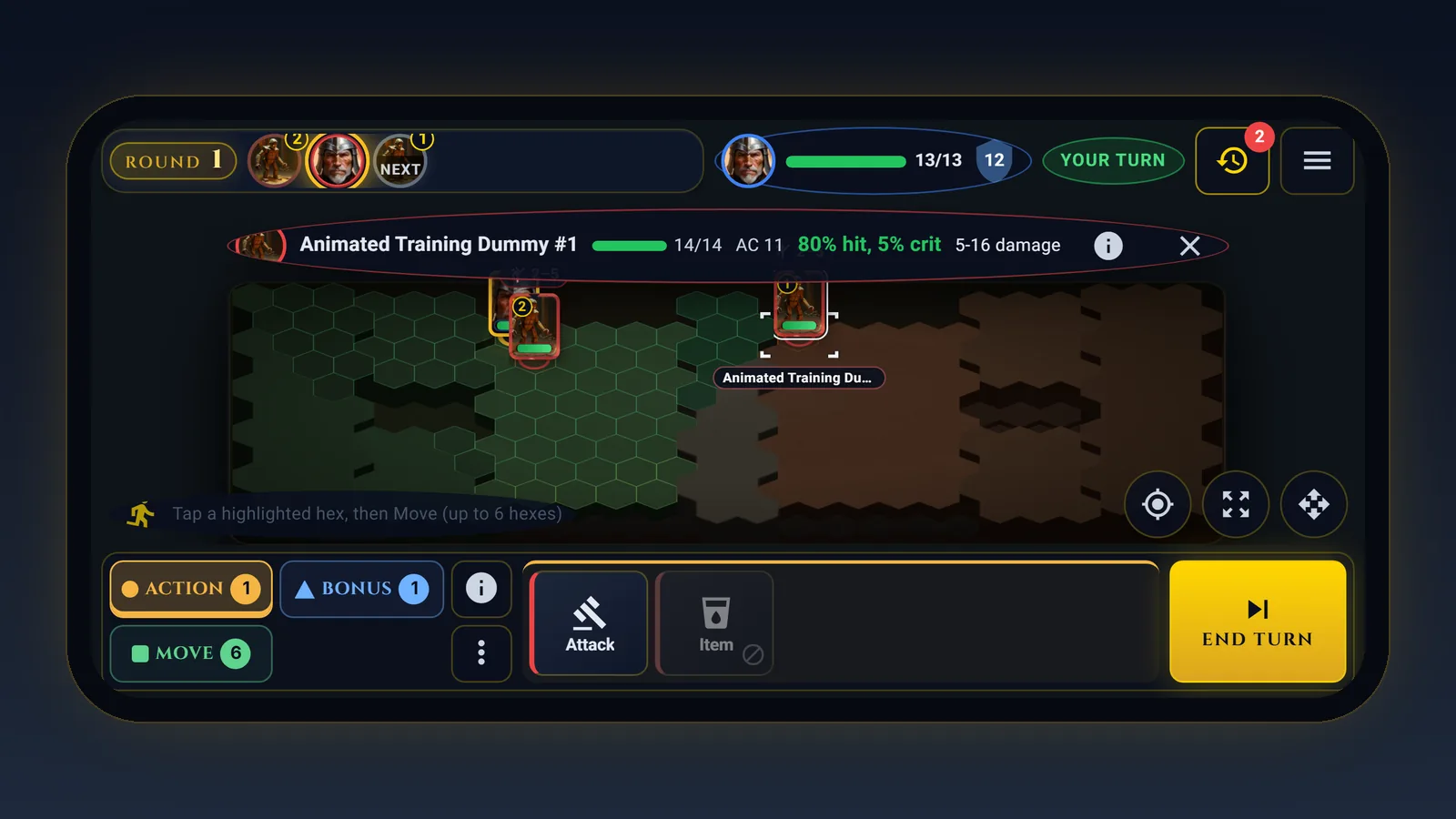
In short: Since October 2026, Lourdin RPG battles play on a phone held sideways. The whole hex board fits, your actions sit on a dock under your thumb, a move waits for you to confirm it, and you can fight in a co-op party. Held upright, your phone still runs the Tavern, your heroes, your gear and the shops.
Pull up a chair, and bring your phone. Since October 2026 you can fight Lourdin RPG battles on a phone again: turn it sideways and the whole hex board fits the screen, solo or in a co-op party. Here is how a battle plays under your thumbs, and what we changed to make room.
Why could you not fight on a phone before?
In June 2026, while we rebuilt the battle screen, phones lost combat. The board is 24 hexes wide in a solo fight and 30 in a party battle, and squeezed onto an upright phone that left hexes about 16 pixels across, too small to tap with any confidence. So the combat page asked for a bigger screen, and phones kept the Tavern, your heroes, your gear and the shops. We did not like that, and we suspect you did not either.
How do you play a battle on a phone?
Hold the phone sideways. The battle takes the whole screen: the site's top bar steps aside, and the hex board sits between two slim strips.
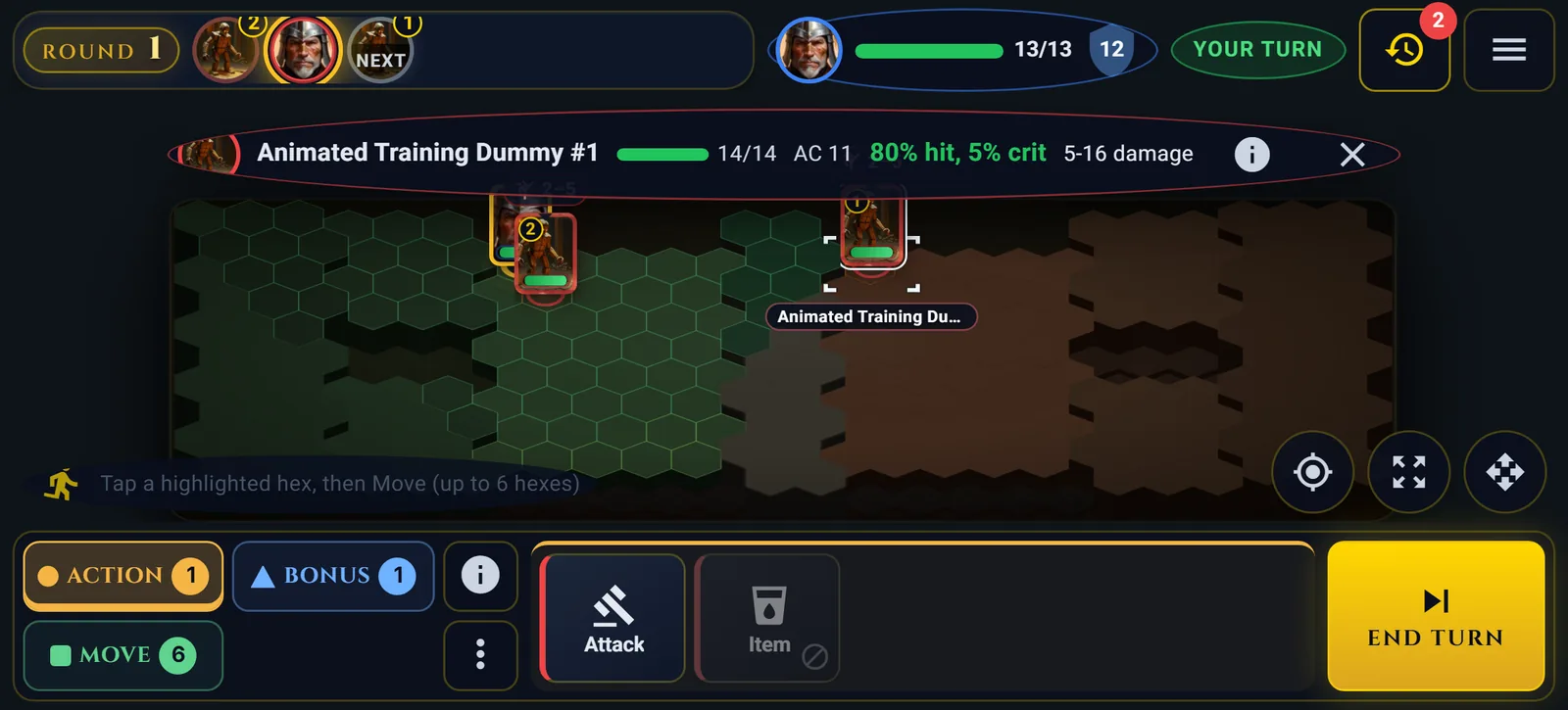
- Across the top: the turn order, your health, mana and Armor Class (tap them for your full card), whose turn it is, the combat log and a menu.
- In the middle: the whole board, tilted a little more steeply than on a computer so each hex comes out wider for your thumb.
- Along the bottom: your actions in lanes (Action, Bonus, Move, and Free when your class has free actions), five large buttons to a page, and one big button under your right thumb.
Tap an enemy and a one-line bar along the top of the board shows its health, its Armor Class, your chance to hit and your damage, with a button that opens its full monster card.
How do you attack or cast a spell on a phone?
Tap the action, then tap a glowing target. A strip across the top of the board shows what will happen: your odds, the damage and its type. The big button under your thumb turns into Confirm; press it, or tap the target again, to let it fly. While you aim, you can also tap an enemy's portrait in the turn order to pick it, which helps when the strip sits over the back row. The X on the strip puts the action away.
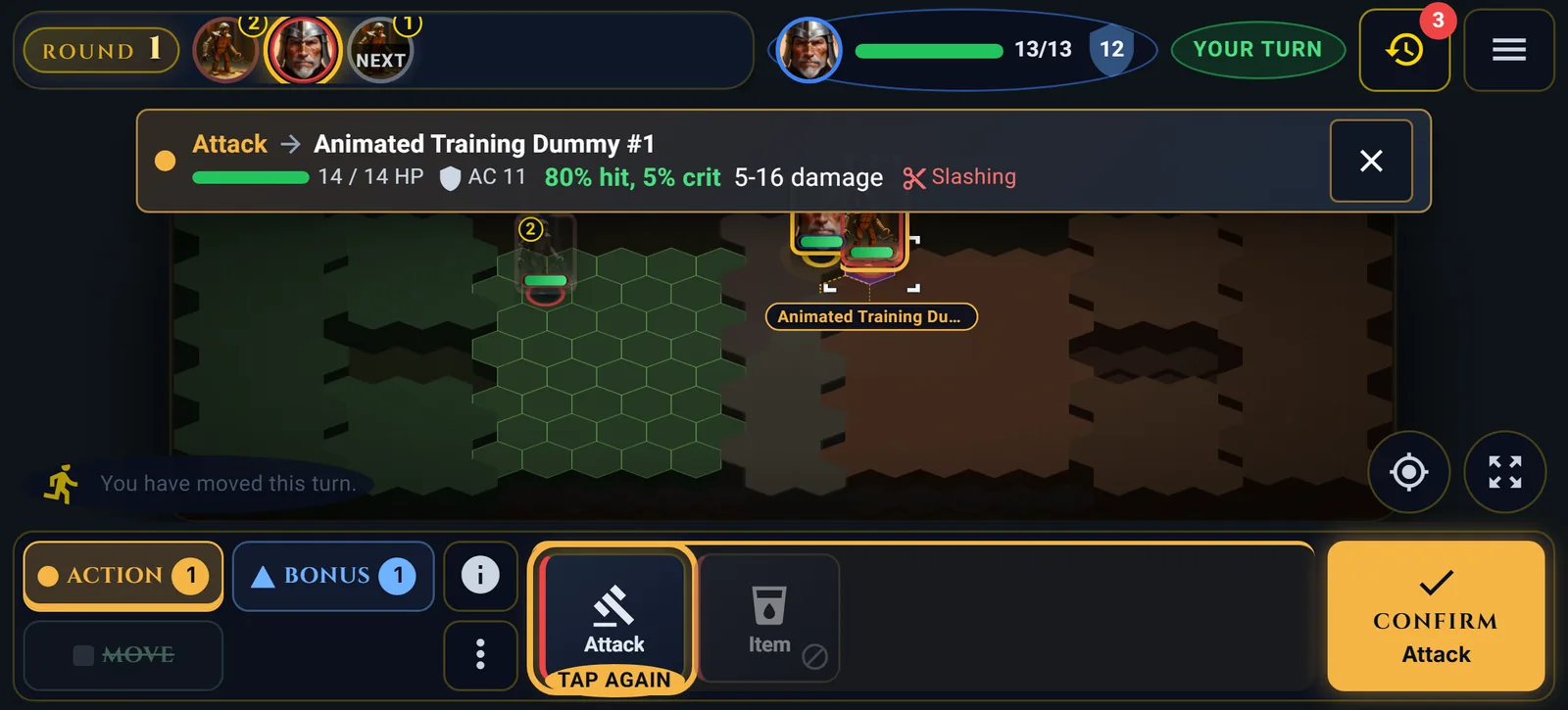
If nothing you can hit is in reach, that button says No target, so you are never left wondering why Confirm stays grey.
How does moving work on a phone?
A tap on a highlighted hex no longer moves you on the spot. It marks the hex and shows how far it is, such as "Move here: 6 of 6 hexes", and the big button turns into Move. Press it to go, or Cancel to think again. A tap on the wrong hex now costs nothing, which matters on a small screen and most of all in a party battle, where a move cannot be taken back. Tablets confirm moves the same way.
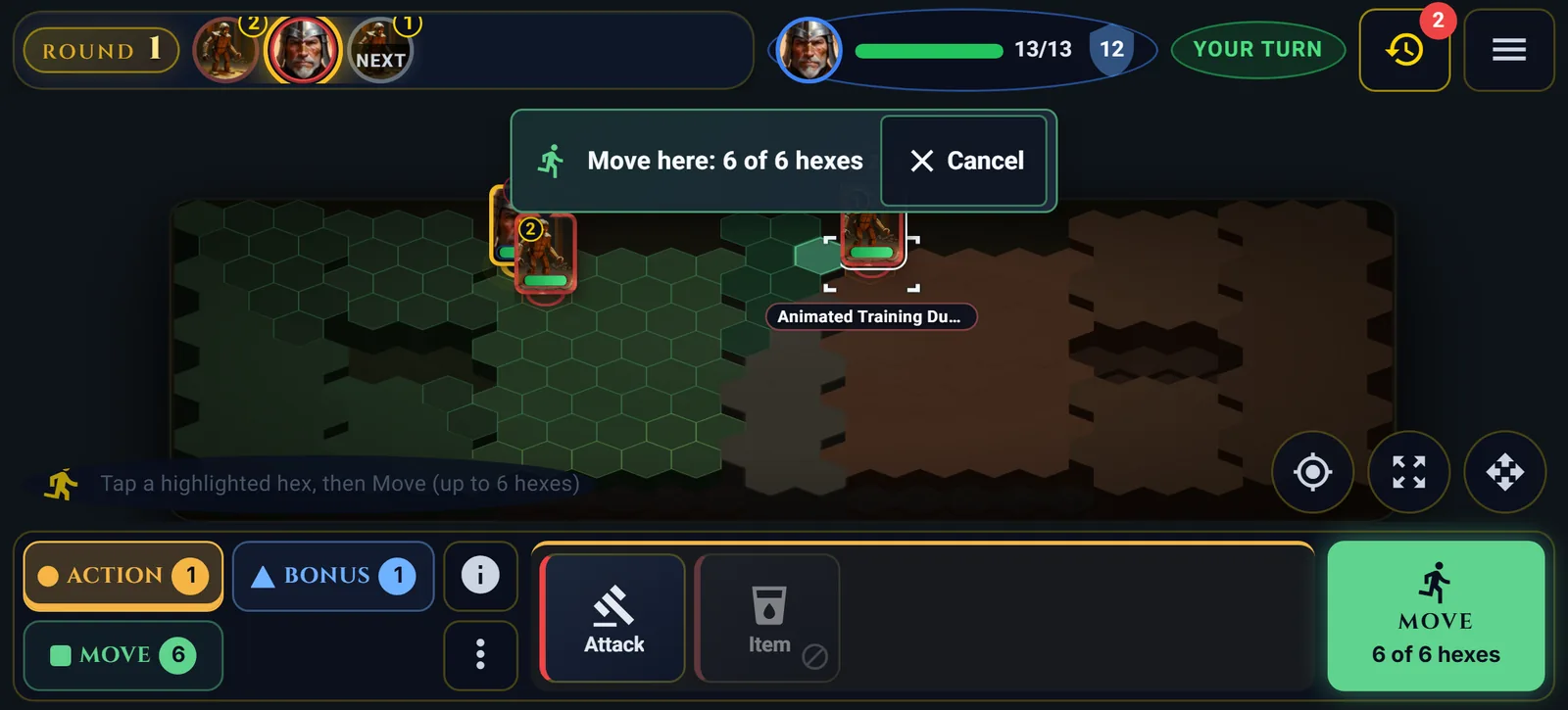
The turn rule is the same everywhere, as the Lourdin RPG combat guide explains: you move once, before you act.
Can you play co-op on a phone?
Yes. A phone held sideways can create or join a party from the lobby, and the battle plays the same way. Two things are made for party play:
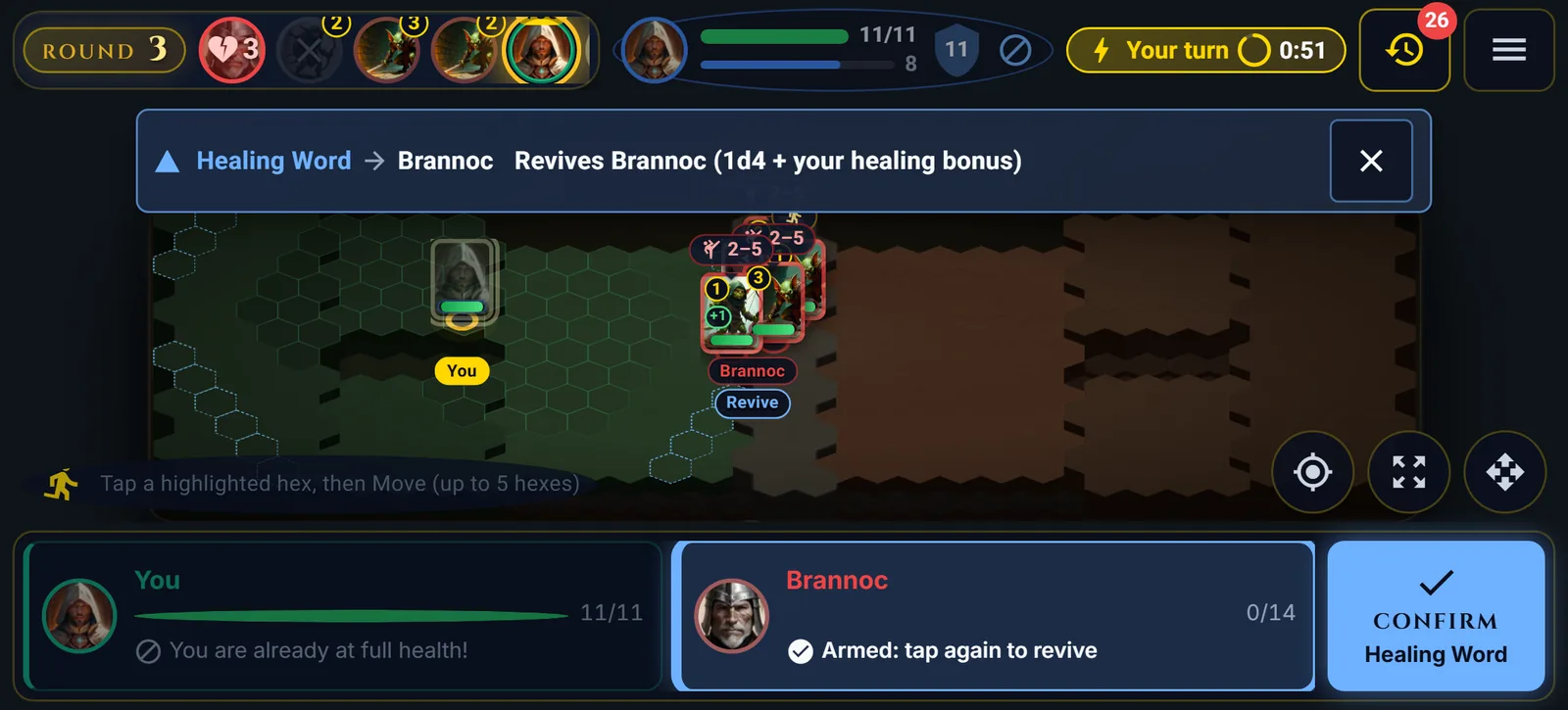
- Healing a friend. When you aim a heal or a buff at an ally, the action buttons give way to your party: one big card for each of you, with health and what a tap does, Tap to target, or Tap to revive for a friend who is down. Tap once to pick, then tap again or press Confirm.
- Your turn timer. On browsers that support it, your screen stays awake during your turn, because the party's turn timer keeps running while a phone sleeps.
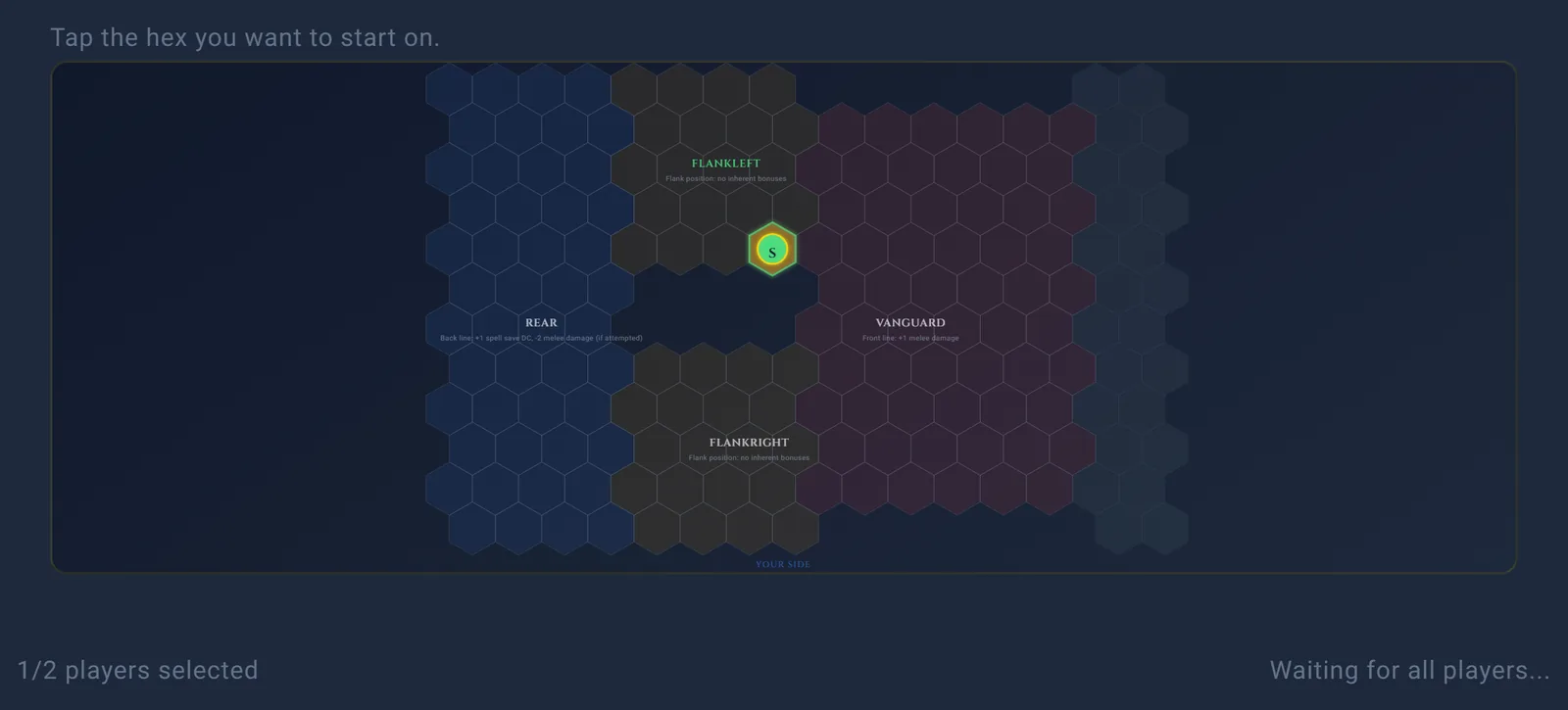
The formation picker at the start of a party battle opens full screen on a phone and shows only your side of the board, so your starting hex is easier to hit.
How to Play covers how parties work, and guilds are a good place to find one.
What happens if you hold your phone upright?
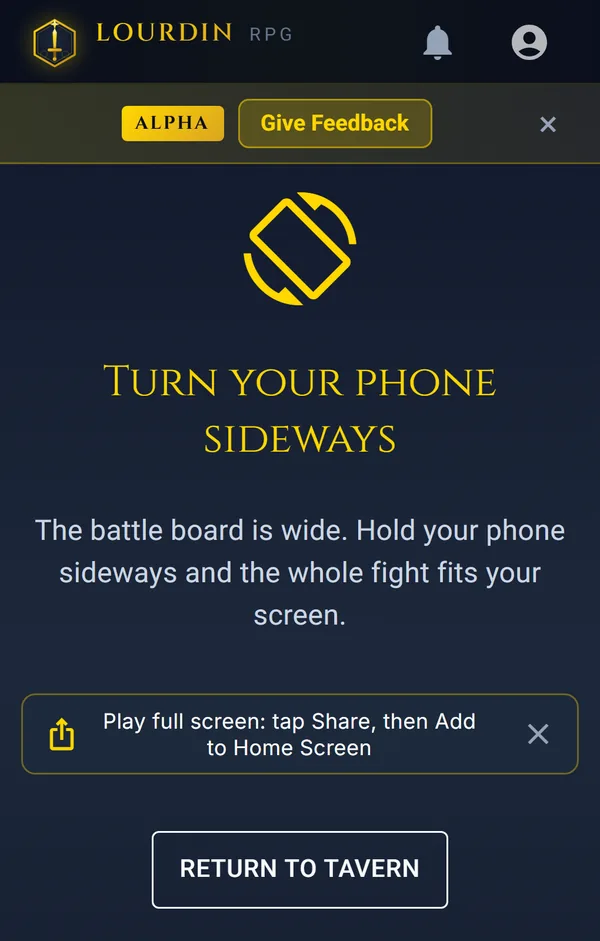
The battle waits for you. The combat page asks you to turn your phone sideways, and turning it back picks up exactly where you were. In a party battle it reminds you that your turn timer keeps running. Upright, the rest of the game works as before: the Tavern, your heroes, your gear and the shops.
Do you need an app to play on a phone?
No. Lourdin RPG runs in your phone's browser. If you add it to your home screen (Share, then Add to Home Screen on an iPhone, or the Install option Chrome offers on Android), it opens full screen without the browser's bars, which gives the board a little more room. The battle menu and the turn-sideways screen offer that tip until you install the game or close the tip.
Which phones and tablets can fight?
A phone fights when it is at least 640 pixels wide held sideways; the iPhone SE from 2020 on, for one, is 667. Tablets play everything held sideways; held upright, a tablet plays when it is 960 pixels wide or more that way, and asks you to turn it otherwise. Computers play everything, as before.
What else changed for everyone?
- After your one move, the board no longer lights up hexes the game would refuse; the hint under the board says you have moved this turn.
- A big touch screen that gets the computer layout confirms moves too, while a mouse keeps one-click moves.
- In the formation picker, a click on a hex under a zone's name now lands on the hex.
Turn your phone sideways and give it a try. If something feels cramped or a tap goes astray, tell us with the Give Feedback button at the top of the site. We are still tuning the phone layout, and a layout for phones held upright is on our list.
Frequently Asked Questions
Can I play Lourdin RPG battles on my phone?
Yes. Since October 2026, battles play on a phone held sideways (landscape): the whole hex board fits, your actions sit on a dock under your thumb, and a tap on a hex waits for you to confirm the move. Held upright, the combat page asks you to turn the phone, and the rest of the game still works. The combat guide covers how a turn works.
Can I play Lourdin RPG co-op on a phone?
Yes. A phone held sideways can create or join a party, and the battle plays the same way. When you aim a heal or a buff at an ally, your party appears as big cards under your thumb, and on browsers that support it your screen stays awake during your turn, because the turn timer keeps running while a phone sleeps.
Why does Lourdin RPG ask me to turn my phone sideways?
The battle board is wide: 24 hexes across in a solo fight and 30 in a party battle. Held sideways, a phone has room to show the whole board with hexes big enough to tap; held upright it does not. Turning the phone back picks the fight up exactly where you left it.
Do I need an app to play Lourdin RPG on a phone?
No. Lourdin RPG runs in your phone's browser with nothing to download. You can add it to your home screen (Share, then Add to Home Screen on an iPhone, or the Install option Chrome offers on Android) so it opens full screen, without the browser's bars.